Adding your first site
Choose your Workspace in Flowpane, then select + Add Site(s) on its dashboard. Sign in if prompted.
From the onboarding wizard
During onboarding (Step 4) you can add Sites by entering their URLs. Site creation happens only after your account has been activated. If some Sites cannot be created, your account is unaffected and the completion screen reports the created, already-present and failed counts separately.
From the Workspace dashboard
- Open your Workspace dashboard.
- Click + Add Site(s).
- On the Single tab, enter the domain or URL, for example
https://example.com. - Press Enter or click Add.
Try the Single tab below, or play the walkthrough to see how adding a Site leads to ownership verification.
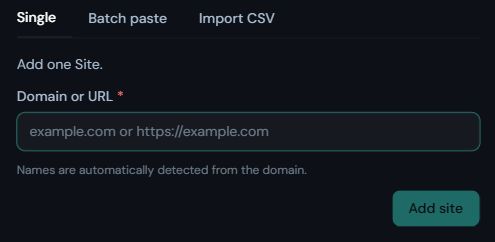
On the Single tab, enter your domain or URL, then choose Add site. Verify ownership before running a governance check.
Screenshot captured 2 October 2026.
The Site appears in the list in the Pending state until you verify ownership.
Verifying ownership
Choose one method:
- File — publish the downloaded verification file at the path shown.
- DNS TXT — publish the supplied value at
_flowpane.<your-site-hostname>. - Meta — publish the supplied tag in the homepage
<head>.
Then click Verify. Once verified, you can start a manual governance check. The list shows Pending until a run reaches a completed or failed outcome, and Active afterwards. Review the monitoring status and latest result; verification alone is not a completed check. See Site verification.
Confirming Site metadata
The first time you open a Site's page, a setup modal appears with auto-detected information:
- Site name — taken from the page's
og:site_name,application_nameor<title>tag - Platform — what Flowpane observed from response headers and HTML patterns (WordPress, Shopify, Joomla and others)
- Audience — inferred from the page's declared language and locale, falling back to the domain ending (for example
.co.uksuggests the United Kingdom) - Industry — choose from the list; it is not detected
- Tags — optional free-text labels
Review the fields, correct anything that is wrong, select the industry and click Confirm. The modal appears once per Site; everything can be edited later from Site settings.
Adding more Sites
See Adding sites for batch paste and Batch import for CSV files.